gh-nvim-username-keywords: GitHub @-mention Autocomplete in Your Neovim Editor
I’ve been writing my GitHub issue and PR comments in neovim more and more. Sometimes through the gh CLI directly, sometimes through interactions with claude-code: both places where I can pop into an nvim session to edit lengthy text and then return to context. It’s faster to write, I get my keybindings, and I can think more clearly in my own editor.
But there’s one thing the GitHub web UI does really well: @-mention autocomplete. Start typing @ and it suggests teammates, reviewers, anyone you might want to loop in. That was unavailable in neovim. Until now.
I built gh-nvim-username-keywords.
Note
gh-nvim-username-keywordsis a GitHub CLI extension that adds GitHub usernames to your nvim keywords file for autocomplete. It discovers usernames from your GitHub teams and PR activity, making it easy to @-mention colleagues.
Installation
gh extension install joshbeckman/gh-nvim-username-keywords
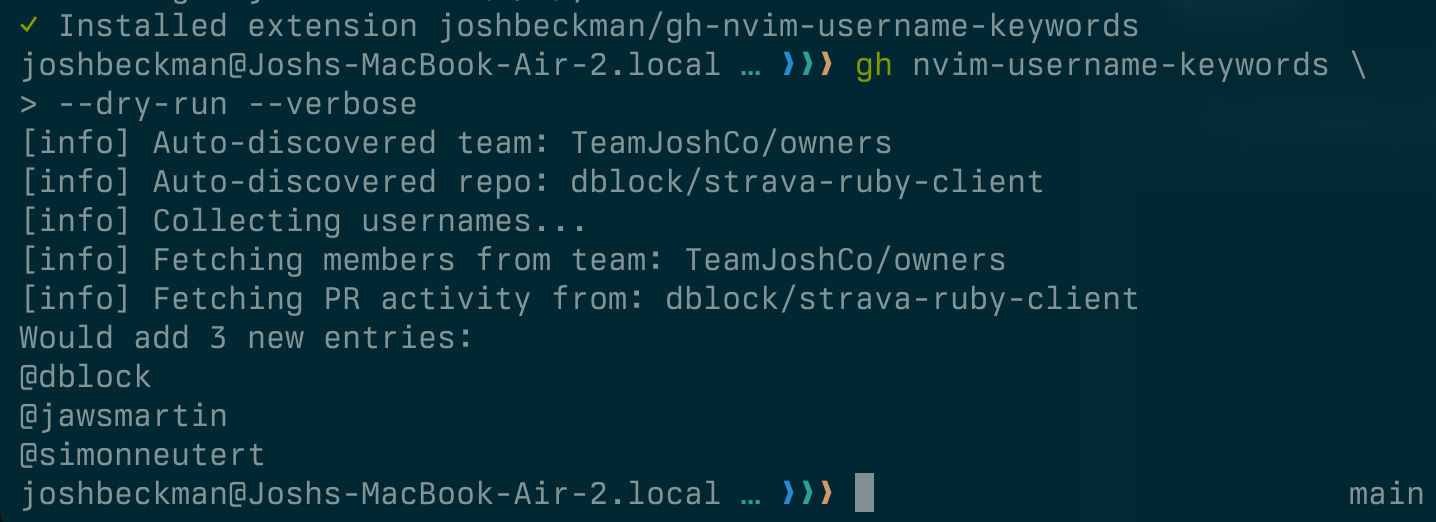
That’s it. Run the gh nvim-username-keywords command whenever you want to sync your recent username interactions to your local nvim dictionary keywords. Then they’re just a tab-complete away while you’re editing.
How It Works
The extension collects usernames from two sources:
- GitHub Teams — members of teams you’re on
- PR Activity — authors, reviewers, and commenters from PRs you’ve authored or reviewed
If you don’t specify teams or repos explicitly, it auto-discovers defaults from your most recent activity. It filters out known bot accounts, compares against your existing keywords file, and appends only new usernames (prefixed with @). The keywords file is append-only—existing entries are never removed.
# Use auto-discovered defaults
gh nvim-username-keywords

# Specify teams explicitly
gh nvim-username-keywords --team myorg/engineering --team myorg/design

# Preview what would be added
gh nvim-username-keywords --dry-run --verbose
Nvim Setup
Your nvim needs a keywords file at ~/.config/nvim/keywords.txt (or wherever $XDG_CONFIG_HOME/nvim/ points). If you’re not already using a keywords file for autocomplete, add this to your nvim config:
vim.opt.dictionary:append(vim.fn.stdpath("config") .. "/keywords.txt")
vim.opt.complete:append("k")
Now <C-n> or <C-p> in insert mode will suggest from your keywords file, including all those @username entries.
I also recommend configuring nvim to not break words on hypens. This is because many users have hyphens in their handles and in the default configuration, nvim will break their names and only tab-complete sections at a time. Here’s how you can change that:
" include hyphens in keyword completion (for usernames like @Gasser-Aly)
set iskeyword+=-
Note
This is my fourth
ghextension. Previously released: gh-wrapped, gh-pr-staleness, and gh-view-md
The source is on GitHub. Contributions welcome!
Reference
-
Permalink (
2025.BLG.201) - On
- In Blog / Practicing
- Tagged tools, github, open-source, vim
- Edit
| ← Previous | Next → |
| gh-wrapped is Your GitHub Wrapped Year in Review, On Demand | Morning Weight Training 🏋️ |